Accessing Vessel Logs
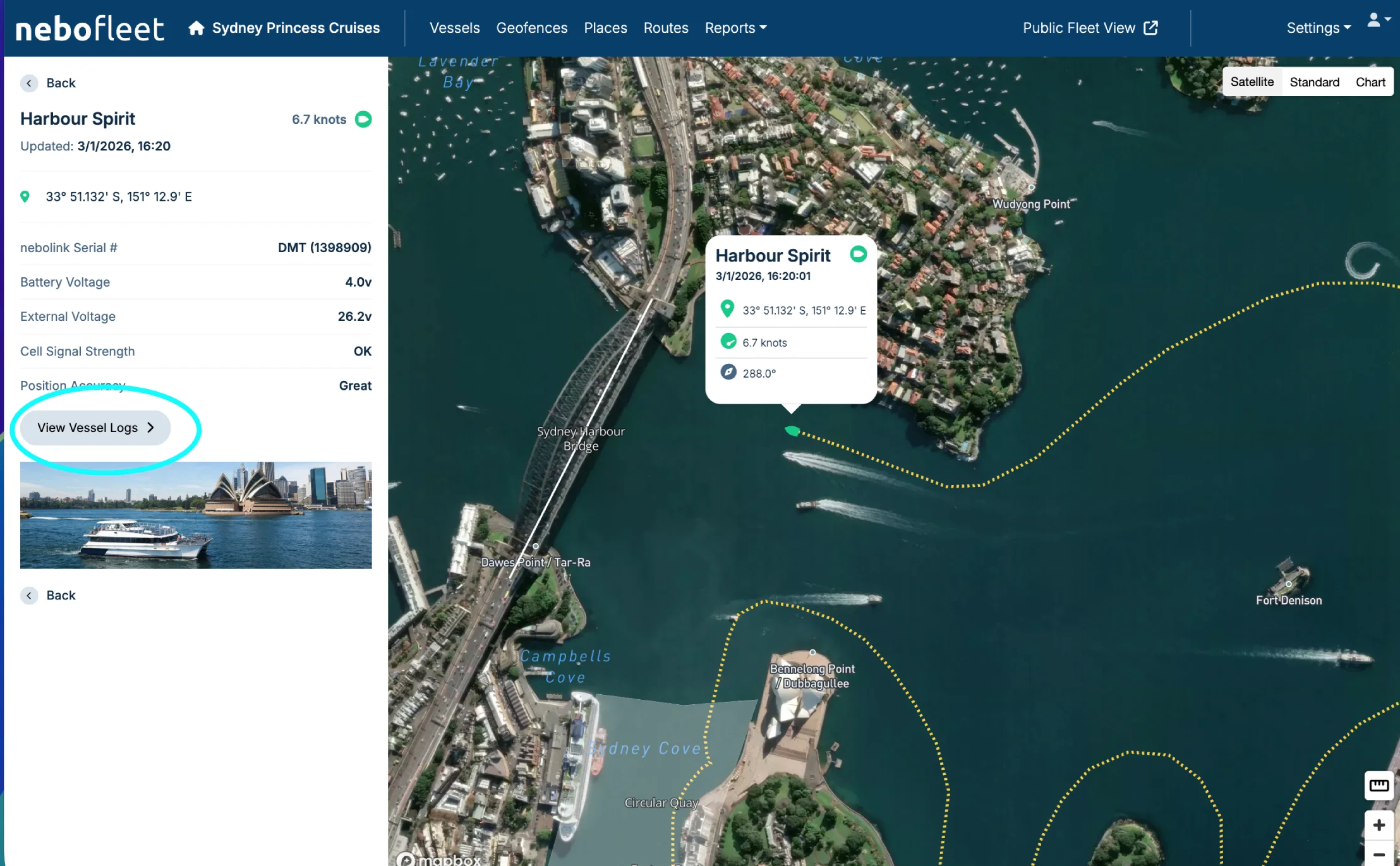
On any vessel details screen, click on the View Vessel Logs button.
Today's Tracks and Geofence Events
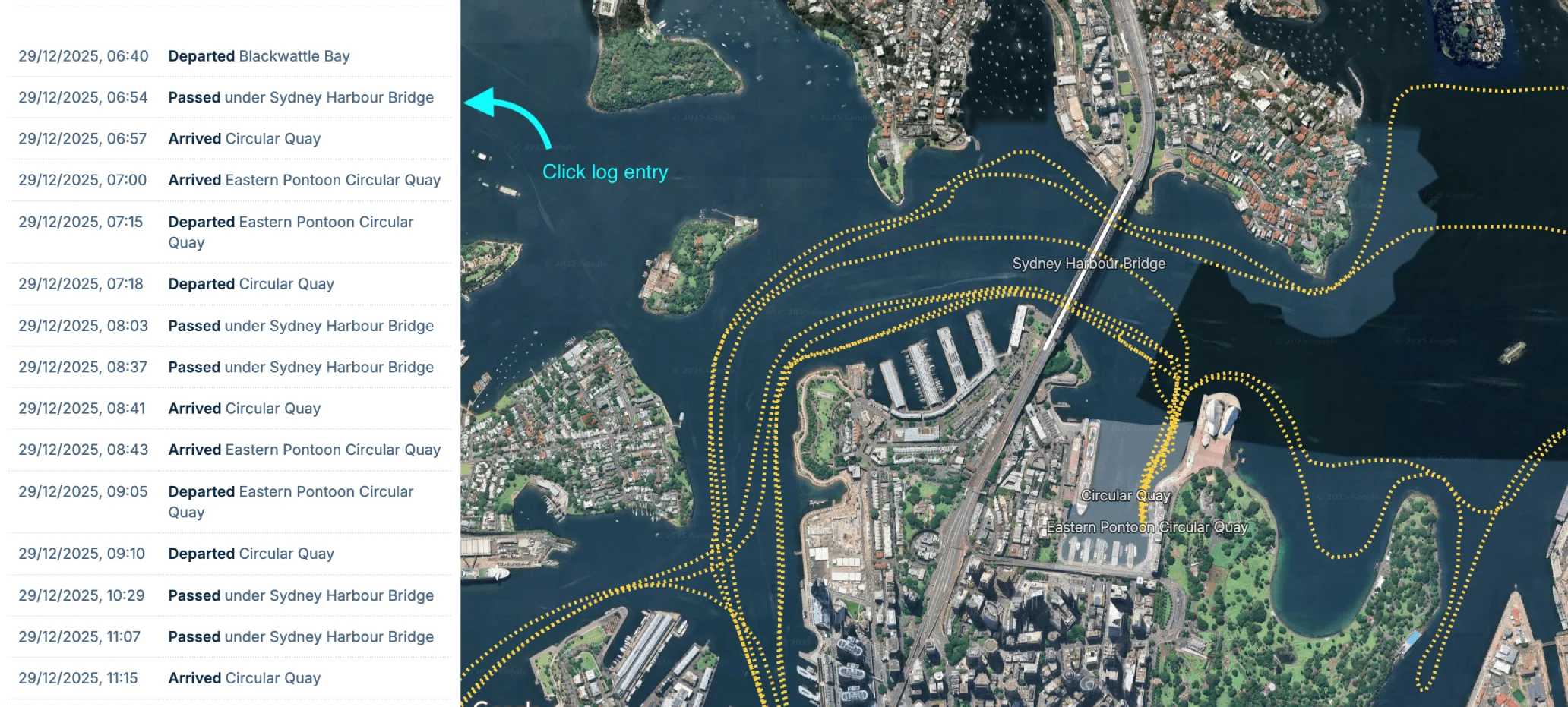
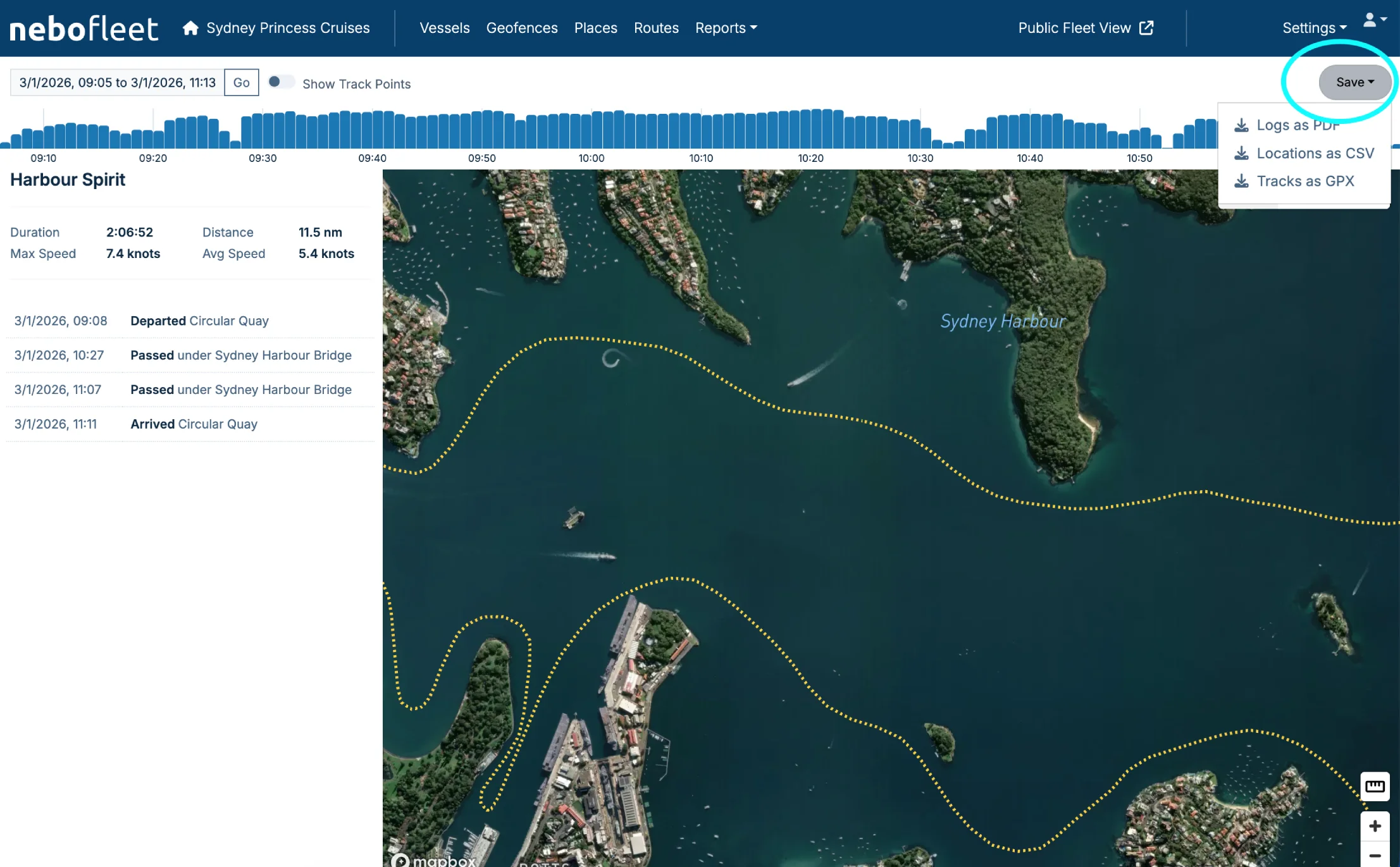
By default, the screen displays all of today's tracks on the map.
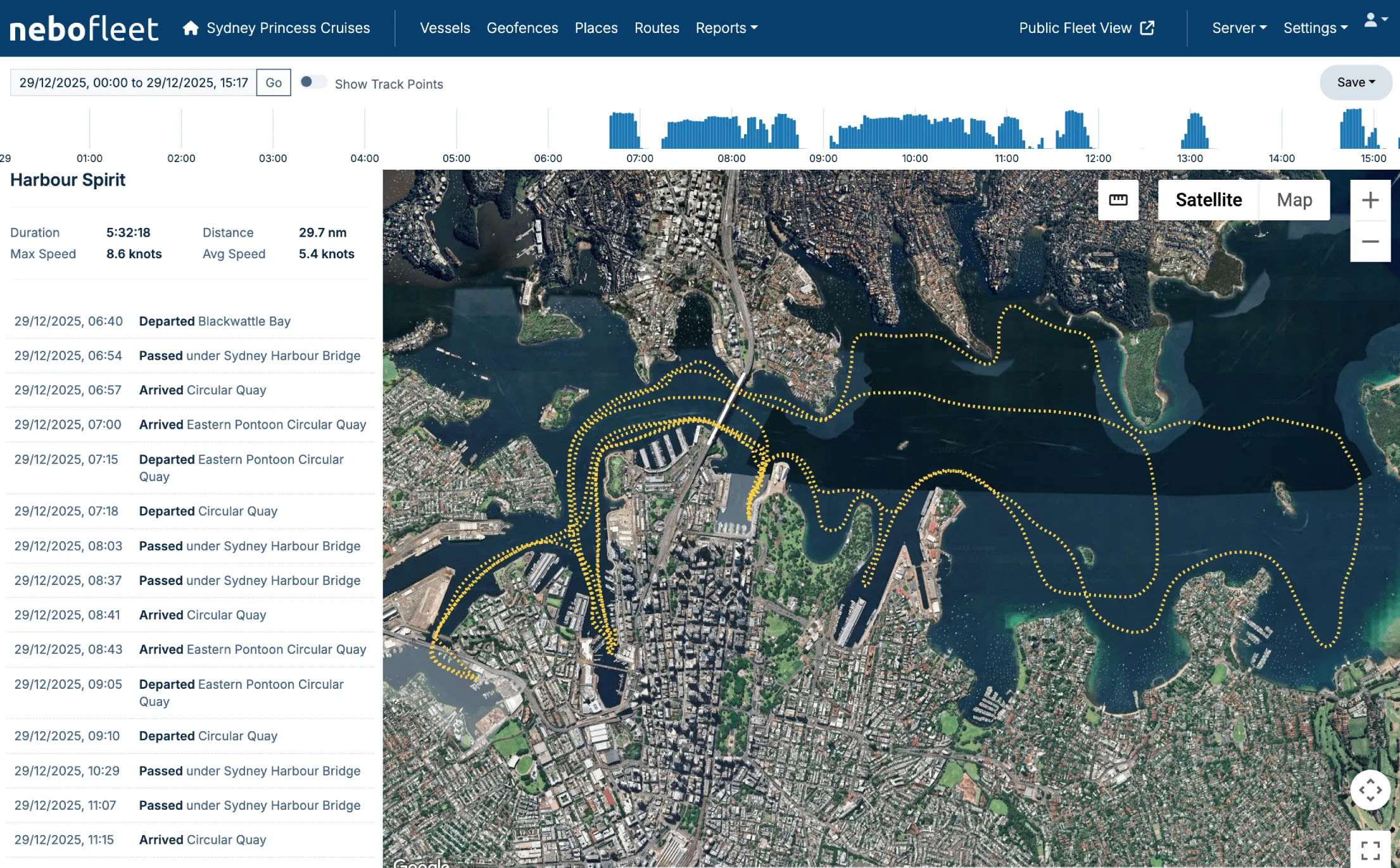
It also displays a log of geofence events (if any) in the left sidebar. You can click a log entry to zoom directly to that location on the map.
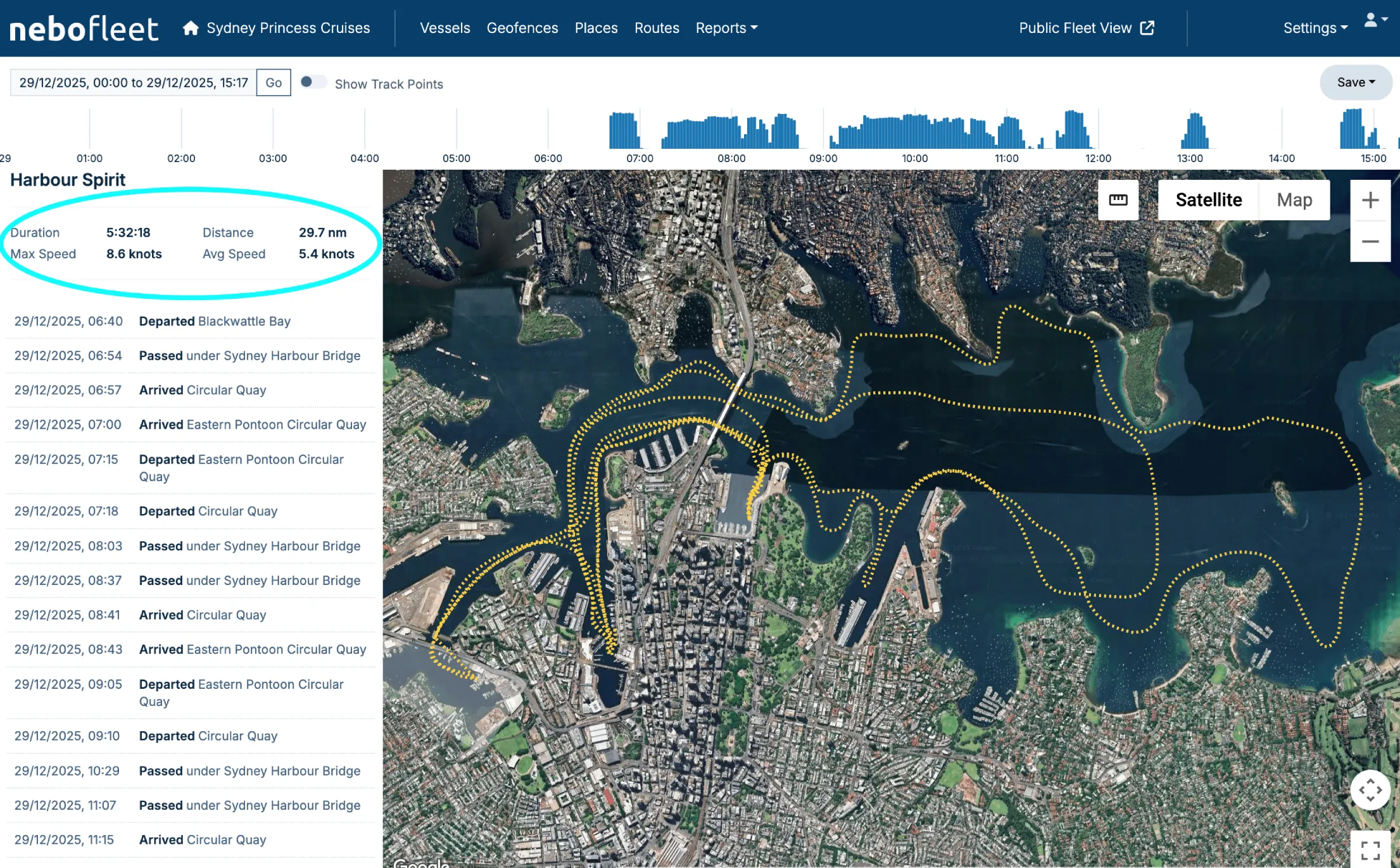
Activity Summary
At the bottom or side of the screen, you will see a summary of activity, which includes duration, distance covered, and average and maximum speeds.
Filtering and Adjusting Logs
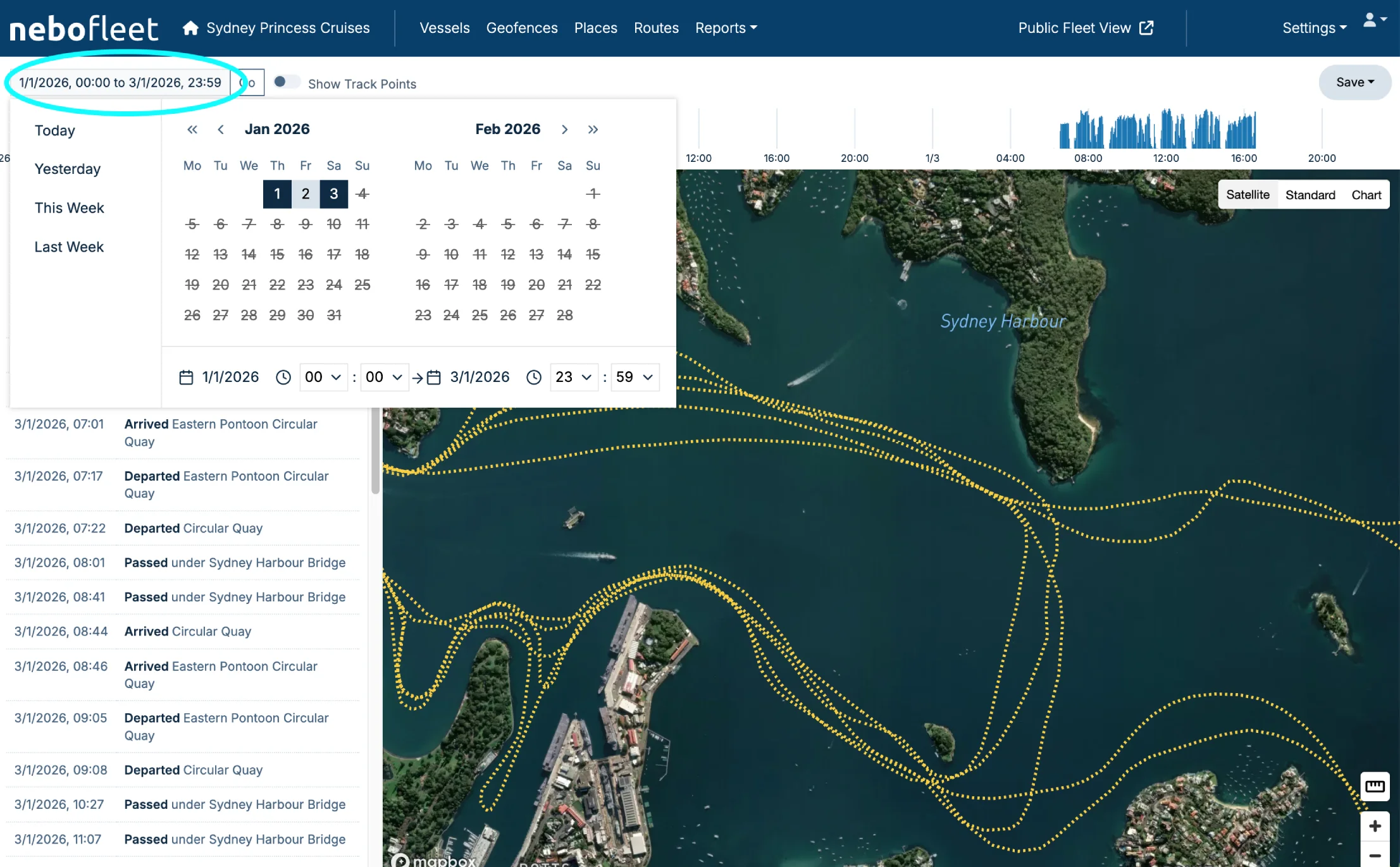
Change the Date Range
Choose to show activity over a different period by tapping the date selector. Choose a date range (and optionally a time range) and click "Go".
Filter by Timeline
Drag the cursor over the timeline at the bottom of the map to select a shorter, specific timeframe.

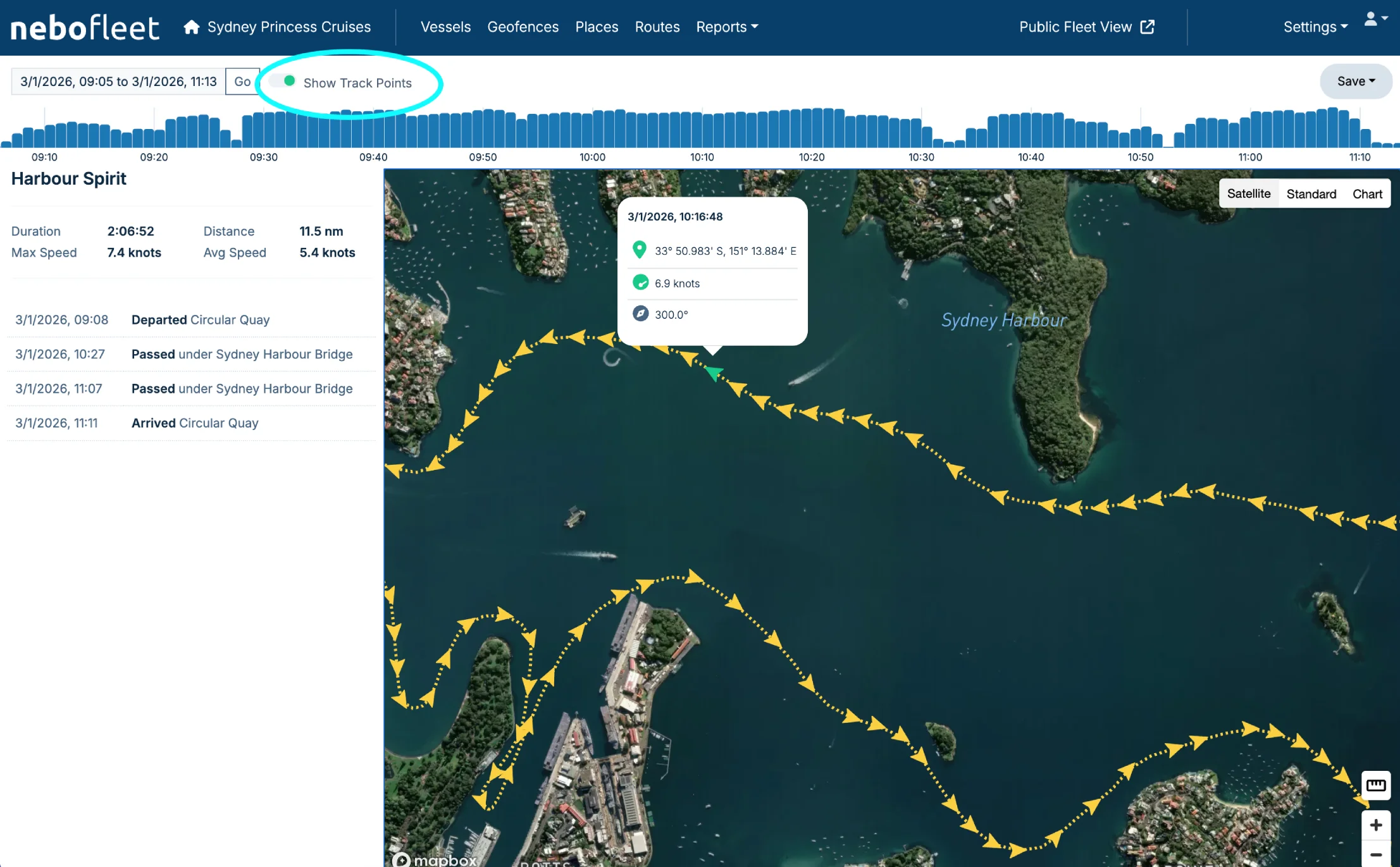
Show Track Points
Choose “Show Track Points” to show individual locations along the track. This will reveal the exact time, coordinates, speed, and heading for each point.
Exporting Logs
Use the save button (top right) to export the log data. You can save the data in the following formats:
- PDF map + log
- Track points in CSV format
- Track as a GPX file
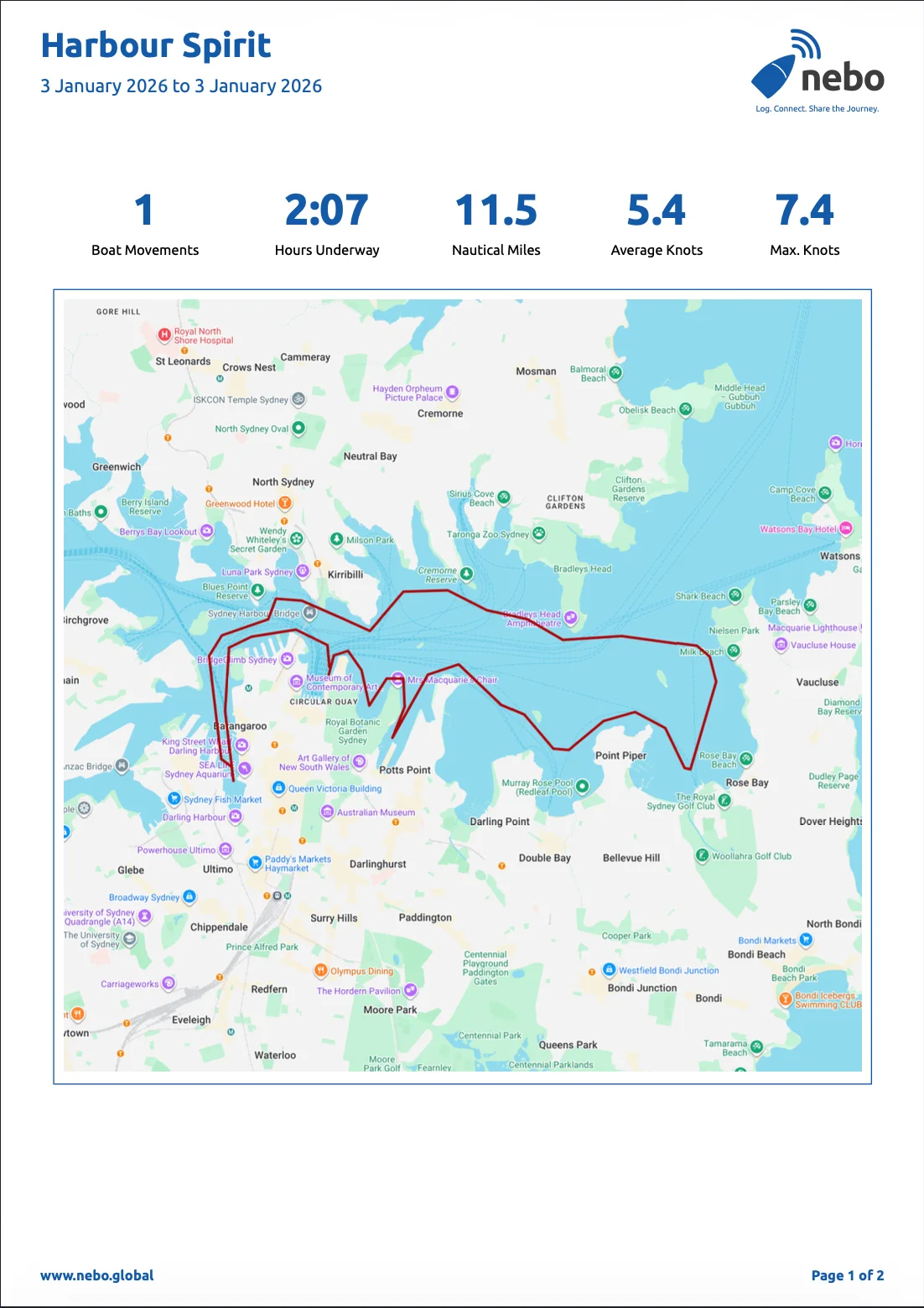
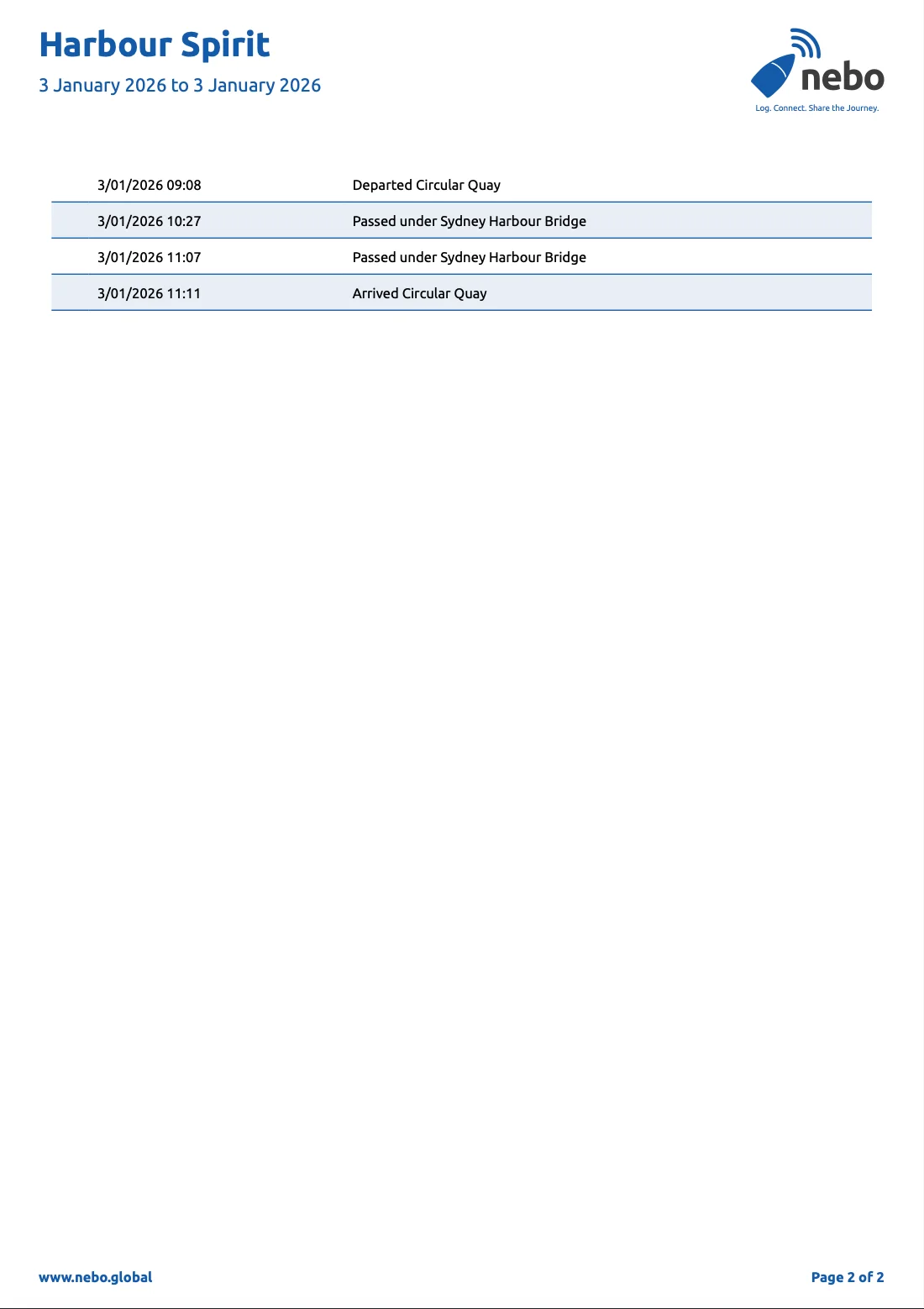
Example of a PDF map + log export: